Interactivity API Reference
Contents
- OBJ_ElementMoveFreely
- OBJ_ElementMove
- OBJ_Gesture
- FigureElementPrimitiveGesture
- OBJ_Touch
- OBJ_CameraControl
- OBJ_RangeBounds
- OBJ_RectBounds
- OBJ_LineBounds
- TypeParsableBounds
OBJ_ElementMoveFreely
Figure element move freely parameters
If a figure element is released from moving with some velocity then these parameters will define how it continues to move freely
Properties
- zeroVelocityThreshold: TypeTransformValue
- deceleration: TypeTransformValue
amount to decelerate in local space units per second squared
- bounceLoss: TypeTransformValue
0.5 results in 50% velocity loss if bouncing of boundary
- callback: ?(string | ((boolean) => void))
called each frame of free movement
OBJ_ElementMove
Figure element move parameters
Properties
- type: type: 'rotation' | 'translation' | 'position' | 'scale' | 'scaleX' | 'scaleY' | 'scaleZ'
- bounds: TypeParsableBounds
rectangle to limit movement within
- plane: Plane
movement plane
- maxVelocity: TypeTransformValue = 5
maximum velocity allowed
- freely: OBJ_ElementMoveFreely
free movement parameters - use false for disabling free movement after touch up
- element: FigureElement | null | string
OBJ_Gesture
Extends OBJ_Generic
Properties
- zoom: OBJ_ZoomOptions | boolean = false
zoom options - if not
falsethen zoom will be enabled - pan: OBJ_PanOptions | boolean = false
pan options - if not
falsethen pan will be enabled - onlyWhenTouched: boolean = true
(mouse wheel zoom/pan and pinch zoom) only notify when element gesture rectangle is being touched
- back: boolean = true
if
true3D shape interactivity will be prioritized - width: number
width of rectangle - defaults to full scene width
- height: number
height of rectangle - defaults to full scene height
- scene: OBJ_Scene | Scene
define if gesture should be an independeant scene (like if the gestures are being used to change the default figure scene) - defaults to Figure scene
- changeScene: OBJ_Scene
if defined, this scene will be automatically updated with any pan and zoom events
- xAlign: 'left' | 'center' | 'right' | number = 'center'
x alignment of rectangle
- yAlign: 'bottom' | 'middle' | 'top' | number = 'middle'
y alignment of rectangle
FigureElementPrimitiveGesture
Gesture rectangle.
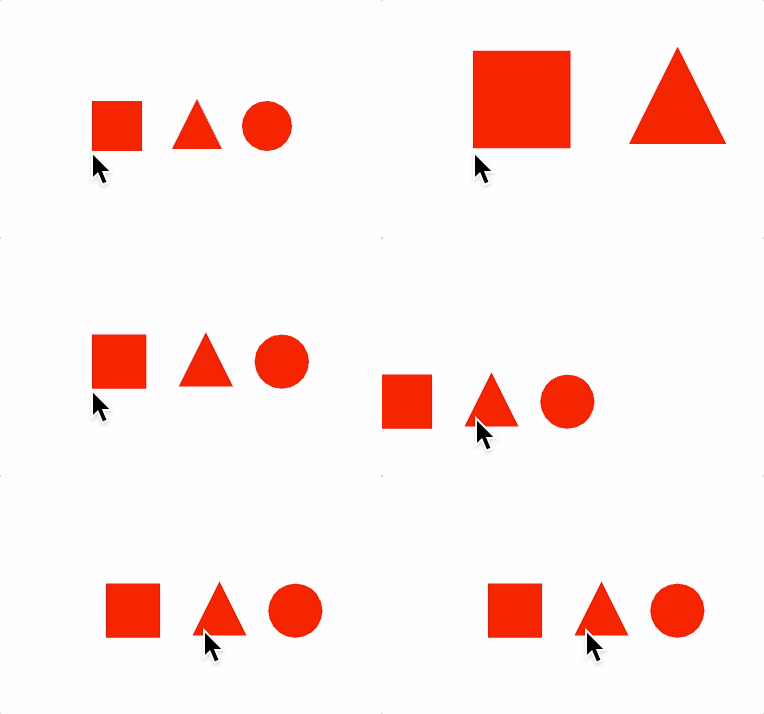
This primitive creates a rectangle within which pan and zoom gestures can be captured (from mouse and touch events) and transformed into pan and zoom values. The pan and zoom values can be used to change Scene objects directly, or used for some custom purpose.
The pan and zoom values are relative to the gesture rectangle and the Scene it is drawn with.
Performing a drag gesture over half the width of the rectangle, will create a pan value that is half the width of the rectangle.
Performing a 2x zoom gesture at a point within the rectangle will create a pan value that is the delta between the original rectangle center and the center of the new zoomed rectangle, and a magnification value of 2.
Any combination of zoom and pan can be expressed as a pan value, that offsets the original rectangle such that when it is then zoomed, the zoom position will be at the same relative position of the original and zoomed rectangle.
Whenever a gesture changes the pan or zoom, then 'pan' or 'zoom'
notifications will be published by the primitive's NotificationManger
(element.notifications).
The handled gestures are:
- Mouse wheel change (often used for zooming and panning with a mouse)
- Drag (often used for panning with touch devices or a mouse)
- Pinching (often used for zooming and panning on touch devices)
Pan
A pan is an offset in xy.
The gestures that can generate pan events are:
- Mouse click then drag
- Finger touch then drag (touch devices)
- Mouse wheel change
For the mouse click and drag, and finger touch and drag gestures, the pan value tracks the change in position of the mouse/finger in the gesture primitive rectangle. For example, if the rectangle has a width of 2, and the mouse or touch moves across half the width of the rectangle, then the pan offset will be 1.
For the mouse wheel change, a wheelSensitivity value is used to speed up or
slow down the pan.
When a pan event happens, a 'pan' notification is published. The parameter
passed to any subscribers is the pan offset value, but if more information
is needed (like the pan delta from the last pan) then getPan() can be
called.
Zoom
A zoom is a magnification at a point in the rectangle. The zoom point will stay stationary, while the other points around it spread out (when zooming in) or compress in (when zooming out). The zoom event thus includes a pan offset to ensure the zoom point stays stationary, as well as a magnification value.
The gestures that can generate zoom events are:
- Mouse wheel vertical change
- Finger touch pinch
A wheelSensitivity or pinchSenstivity value is used to speed up or slow down zooming.
When a zoom event happens, a 'zoom' notification is published. The
parameters passed to any subscribers are the zoom magnification value and
pan offset, but if more information is needed (like the zoom position)
then getZoom() can be called.
Zoom and pan events can be used in many ways. One of the most common ways will be to change a Scene that contains one or more FigureElements allowing a user to pan or zoom through the scene.
In such cases, the zoomScene() and panScene() methods can be used to do
this directly.
Alternately, a changeScene can be defined which will be automatically
panned and zoomed by this primitive.
In general the scene that is being used to draw the gesture primitive should not be panned or zoomed by the gesture primitive, as this will produce unexpected results (especially when panning). If the gesture primitive is setup to change the same scene as it uses itself, then it will assign itself a duplicate scene.
Gesture primitive pans and zooms a figure scene
const figure = new Fig.Figure({ color: [1, 0, 0, 1] });
// Elements within the figure to zoom and pan
figure.add([
{ make: 'rectangle', width: 0.2, height: 0.2, position: [-0.3, 0] },
{ make: 'triangle', width: 0.2, height: 0.2, position: [0.02, -0.025] },
{ make: 'ellipse', width: 0.2, height: 0.2, position: [0.3, 0] },
])
// Gesture Primitive
figure.add({
make: 'gesture',
changeScene: figure.scene,
pan: true,
zoom: true,
});
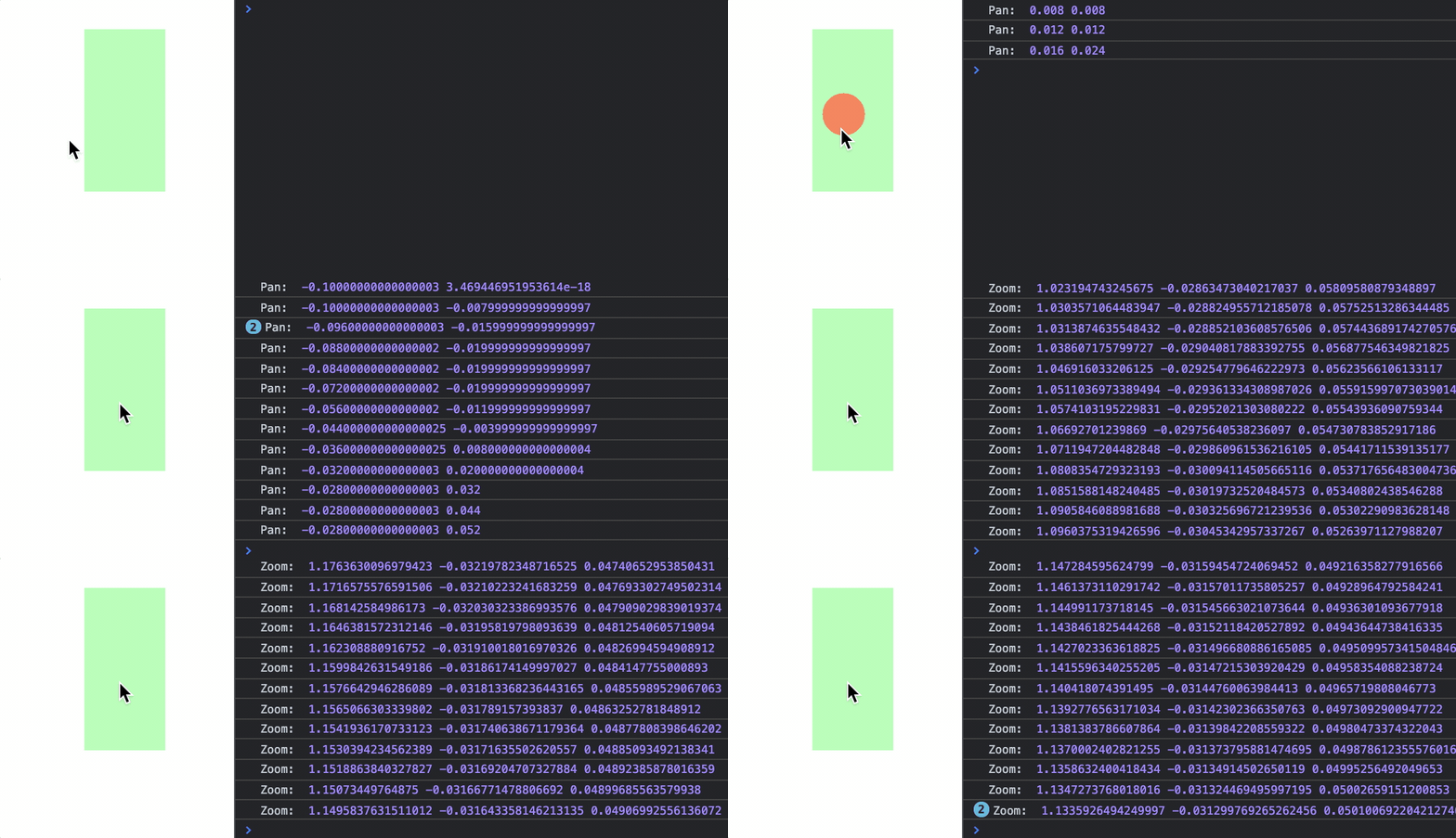
Using zoom and pan notifications when the gestures are confied
// to a green rectangle
const figure = new Fig.Figure({ color: [1, 0, 0, 1] });
const gesture = figure.add({
make: 'gesture',
color: [0, 1, 0, 0.3],
width: 0.5,
height: 1,
pan: true,
zoom: true,
});
gesture.notifications.add(
'pan', offset => console.log('Pan: ', offset.x, offset.y),
);
gesture.notifications.add(
'zoom', (mag, offset) => console.log('Zoom: ', mag, offset.x, offset.y),
);
OBJ_Touch
Touch options for a FigureElement.
Properties
- enable: boolean = true
trueto enable touch - onClick: string | ((Point, FigureElement) => void)
function to execute when element is touched. If string, then a function from the FunctionMap is used.
- colorSeed: string = 'default'
use a unique string to reset color generation of unique colors used for touch determination (debug only)
OBJ_CameraControl
Camera control definition object that extends and OBJ_FigurePrimitive
A camera control is a transparent rectangle that uses touch and drag gestures to rotate the position of the camera in a 3D scene around a vertical axis.
The vertical axis will always remain vertical. Left/right movements will rotate the scene around the vertical axis (in the azimuth of the vertical axis), while up/down movements will change the elevation relative to the vertical axis.
The transparent rectangle will be positioned relative to the 2D HTML canvas
the figure is drawn in on the screen. The left, bottom, width and
height properties are numbers from 0 to 1 which represent percentage of
the screen width and height.
Thus for the rectangle to cover the entire screen, values of left: 0,
bottom: 0, width: 1 and height: 1 would be used (these are the default
values as well).
By default, the figure's Scene camera position is modified. If an
element's custom scene is to be controlled, use the scene property to link
to it.
How fast the camera is rotated in the aziumuth and elevation is controlled by
the sensitivity, xSensitivity and ySensitivity properties.
A higher sensitivity value will result in more rotation for the same user
movement. If only azimuthal or elevation rotation is desired set
ySensitivity or xSensitivity to 0 respectively.
Properties
- left: number
screen left position to place the control rectangle. 0 is the left edge, while 1 is the right edge (
0). - bottom: number
screen bottom position to place the control rectangle. 0 is the bottom edge, while 1 is the top edge (
0). - width: number
width of control rectangle. 1 is the full width of the drawing canvas (
1). - height: number
height of control rectangle. 1 is the full height of the drawing canvas (
1). - axis: TypeParsablePoint = [0, 1, 0]
Axis to keep vertical as camera is rotated. The axis vector and scene.camera.up vector should be in the same plane
- controlScene: Scene | string
Use this to control a scene that is not the default Figure scene.
- sensitivity: number = 5
sensitivity of camera position relative to user movement where larger numbers result in more rotation for the same movement
- xSensitivity: number = 1
sensitivity to a horizontal user movement. Setting this to 0 will mean the scene doesn't not rotate aziumthally
- ySensitivity: number = 1
sensitivity to a vertical user movement. Setting this to 0 will mean the elevation does not change
- back: boolean = true
if
truethen all 2D and 3D objects that can be touched will be touched before the camera control, regardless of where it is on the drawing stack. This should be used everytime 3D objects need priority over the camera control
Add a camera control that will cover the whole screen
figure.add([
{
make: 'cylinder',
radius: 0.01,
color: [1, 0, 0, 1],
line: [[-1, 0, 0], [1, 0, 0]],
},
{
make: 'cylinder',
radius: 0.01,
color: [0, 1, 0, 1],
line: [[0, -1, 0], [0, 1, 0]],
},
{
make: 'cylinder',
radius: 0.01,
color: [0, 0, 1, 1],
line: [[0, 0, -1], [0, 0, 1]],
},
{
make: 'grid',
bounds: [-0.8, -0.8, 1.6, 1.6],
xStep: 0.05,
yStep: 0.05,
line: { width: 0.002 },
color: [0.7, 0.7, 0.7, 1],
transform: ['r', Math.PI / 2, 1, 0, 0],
},
]);
// Add camera control
figure.add({
make: 'cameraControl',
});
Add a thin bar at the bottom of the figure that rotates the scene in the
// azimuth only
figure.add([
{
make: 'cylinder',
radius: 0.01,
color: [1, 0, 0, 1],
line: [[-1, 0, 0], [1, 0, 0]],
},
{
make: 'cylinder',
radius: 0.01,
color: [0, 1, 0, 1],
line: [[0, -1, 0], [0, 1, 0]],
},
{
make: 'cylinder',
radius: 0.01,
color: [0, 0, 1, 1],
line: [[0, 0, -1], [0, 0, 1]],
},
{
make: 'grid',
bounds: [-0.8, -0.8, 1.6, 1.6],
xStep: 0.05,
yStep: 0.05,
line: { width: 0.002 },
color: [0.7, 0.7, 0.7, 1],
transform: ['r', Math.PI / 2, 1, 0, 0],
},
]);
// Add a moveable cube
figure.add({
make: 'cube',
side: 0.3,
color: [1, 0, 0, 1],
center: [0.3, 0, 0],
move: {
plane: [[0, 0, 0], [0, 1, 0]],
},
});
// Add camera control bar at the bottom of the screen that only allows
// rotation in the azimuth. As the camera control bar does not overlap the
// cube, then both the cube can moved, and the scene rotated with the bar.
figure.add({
make: 'cameraControl',
color: [0, 0, 0, 0.2],
ySensitivity: 0,
height: 0.1,
});
OBJ_RangeBounds
Range bounds object definition.
A range bounds defines a minimum and maximum value.
Properties
- min: number | null = null
minimum value boundary, null for unbounded
- max: number | null = null
maximum value boundary, null for unbounded
- precision: number = 8
precision with which to calculate boundary
intersectandcontains
OBJ_RectBounds
A RectBounds is a rectangle bounds around a point in a plane.
It is defined by:
- a position in plane around which rectangle is formed
- topDirection/rightDirection vectors that orient the rectangle
- left/right magnitudes that define the width of the rectangle
- bottom/top magnitudes that define the height of the rectangle
---------------------------------------------- A
| | |
| Top Vector | |
| A | | top
| | | |
| | | |
| position *-----> | ---
| Right Vector | |
| | | bottom
| | |
---------------------------------------------- V
. |
. |
<-------------|----------------------------->
left right
A rectangle can be defined in one of several ways:
- position, plane normal, one direction vecvtor (top or right)
- position, top and right direction vectors
By default the rectangle will be in the XY plane (+z normal) with a rightDirection vector along the +x axis.
Properties
- position: TypeParsablePoint
- normal: TypeParsablePoint
- rightDirection: TypeParsablePoint
- topDirection: TypeParsablePoint
- left: number
- right: number
- top: number
- bottom: number
- precision: number = 8
precision with which to calculate boundary
intersectandcontains
OBJ_LineBounds
A line bounds defines a line boundary.
Properties
- line: TypeParsableLine
- precision: number = 8
precision with which to calculate boundary
intersectandcontains
TypeParsableBounds
Parsable bounds definition.
null | Bounds
| RectBounds|LineBounds|RangeBounds
|OBJ_RectBounds|OBJ_LineBounds|OBJ_RangeBounds
| TypeF1DefRangeBounds|TypeF1DefRectBounds|TypeF1DefLineBounds
used to overcome limitations of floating point numbers not reaching 0