Animation
Animations change figure elements over time.
Each figure element has its own AnimationManager (animations property) that can coordinate animations for any element.
An animation is a number of AnimationSteps in either series or parallel. The animation manager provides a way to create these steps, build them into a complete animation, and then manage their execution.
Animation Examples
Let's create a simple animation. Start by defining a figure and retrieving the element to animate by creating the boilerplate files above.
A PositionAnimationStep can be created to translate the shape, and a RotationAnimationStep to rotate it
const translate = p.animations.position({ target: [1, 0], duration: 2 });
const rotate = p.animations.rotation({ target: Math.PI, duration: 2 });
The animation can then be created and started
p.animations.new()
.then(translate)
.then(rotate)
.start();

A more convenient way to chain animation steps in series is to create them inline. The animations.new method returns an AnimationBuilder that allows for inline step creation.
p.animations.new()
.position({ target: [1, 0], duration: 2 })
.rotation({ target: Math.PI, duration: 2 })
.start();
An animation manager is tied to one element, but can be used to animate other elements too
// add another element
const q = figure.add({
make: 'polygon',
radius: 0.5,
sides: 3,
position: [-1, 0]
});
// Use p animation manager to animate q
p.animations.new()
.translation({ target: [1, 0], duration: 2 })
.rotation({ element: q, target: Math.PI / 3 * 2, duration: 2})
.start();
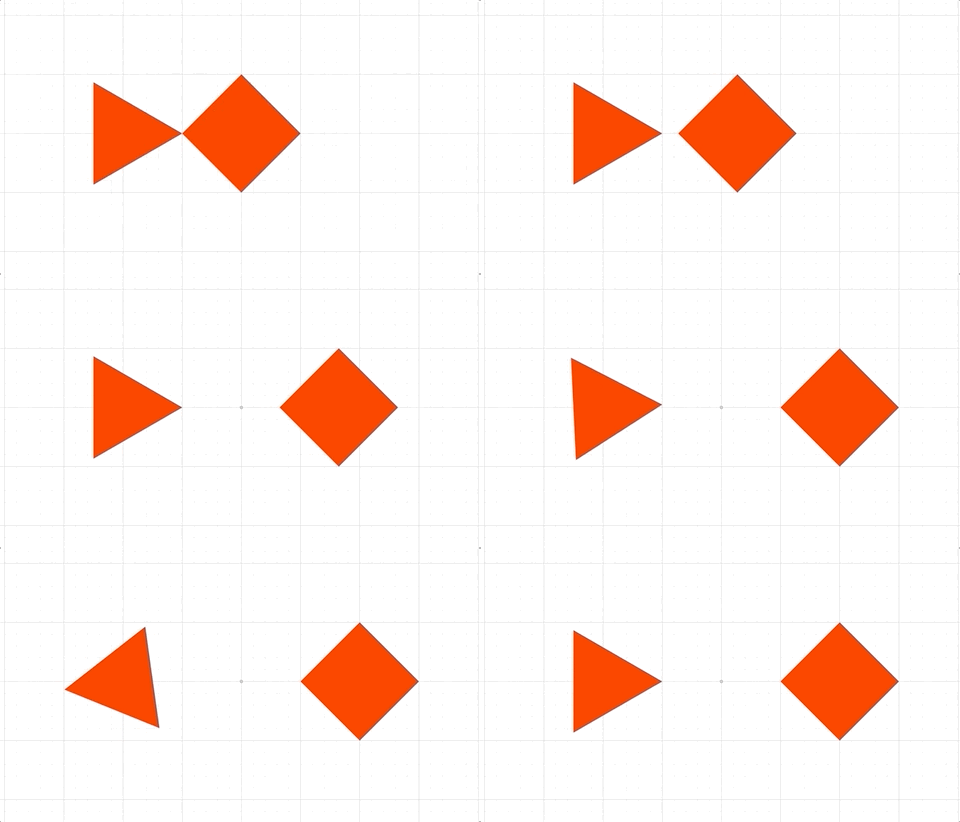
Multiple animations can be added to a single element, but if they modify the same property of the element, then the latter one will overwrite the earlier on each animation frame. In the next example, both animations animate different parts of the element's transform and so will happen in parallel.
// animate the translation
p.animations.new()
.translation({ target: [1, 0], duration: 2 })
.start();
// animate the rotation
p.animations.new()
.rotation({ target: Math.PI / 2 * 3, duration: 2 })
.start();
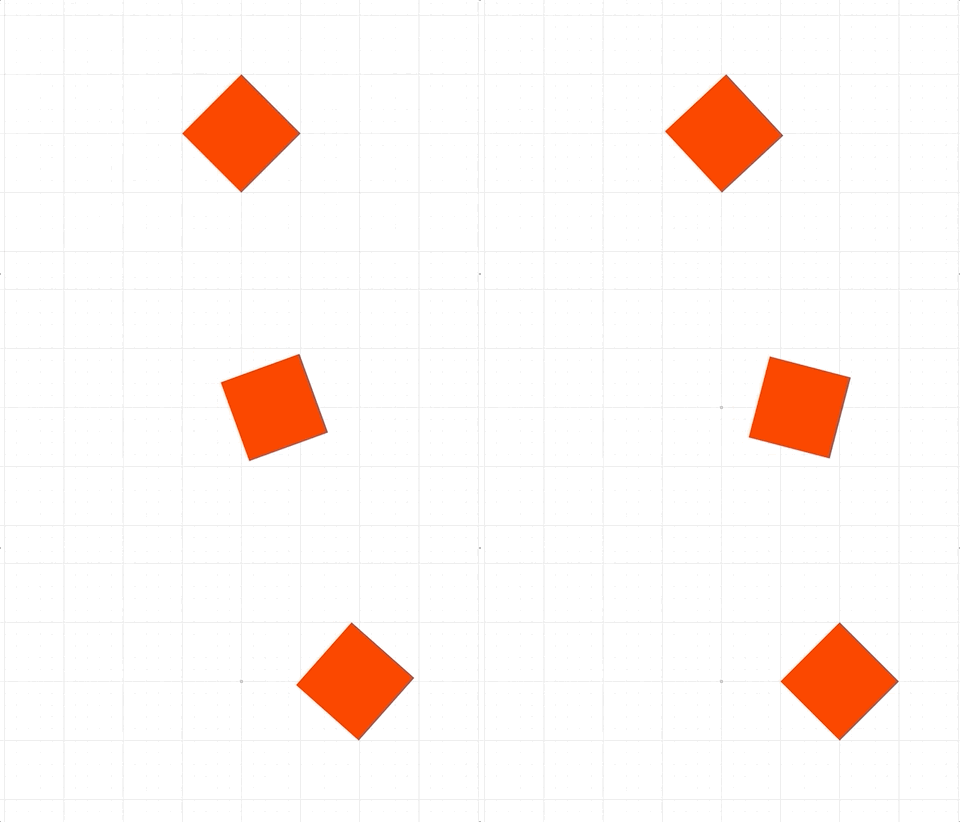
While this is one way to do a parallel animation, a more convenient way (especially when dealing with many steps) is to use a parallel animation step:
p.animations.new()
.inParallel([
p.animations.translation({ target: [1, 0], duration: 2 }),
p.animations.rotation({ target: Math.PI / 2 * 3, duration: 2 }),
p.animations.color({ target: [0, 0, 1, 1], delay: 1, duration: 2 }),
])
.start();
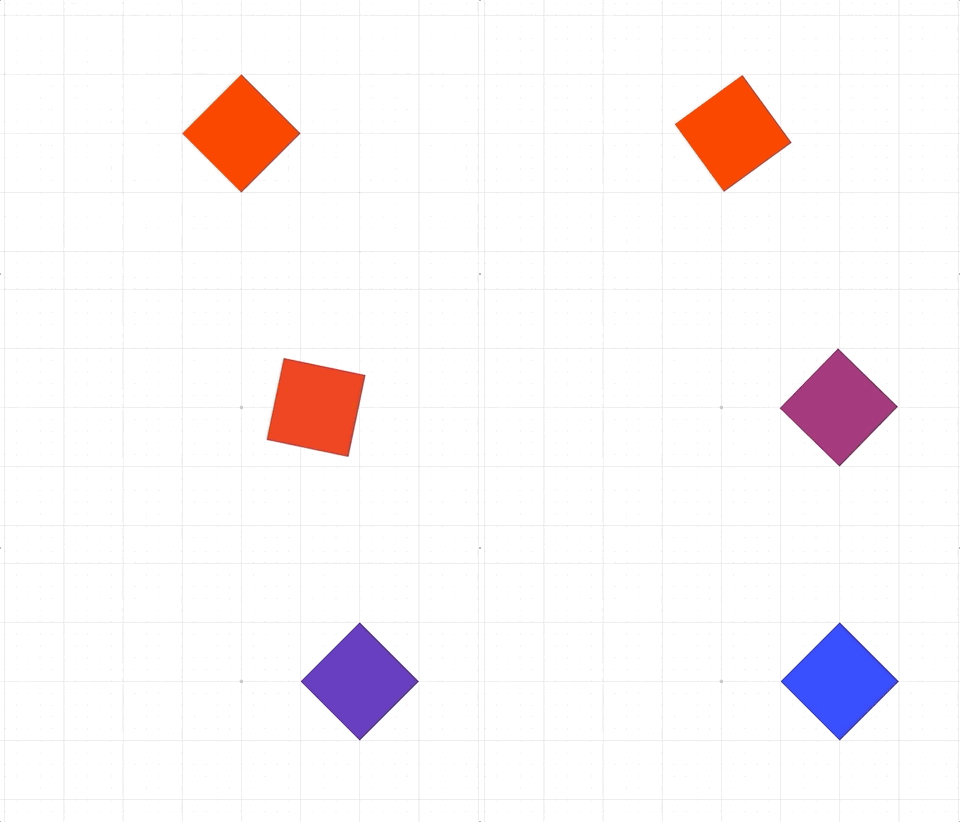
Callbacks can be defined when animations finish
p.animations.new()
.delay(1)
.transform({ target: new Fig.Transform().scale(0.5, 2).rotate(Math.PI).translate(1, 0), duration: 2 })
.scale({ target: [1, 1], duration: 2 })
.dissolveOut(1)
.whenFinished(() => { console.log('animation done') })
.start();
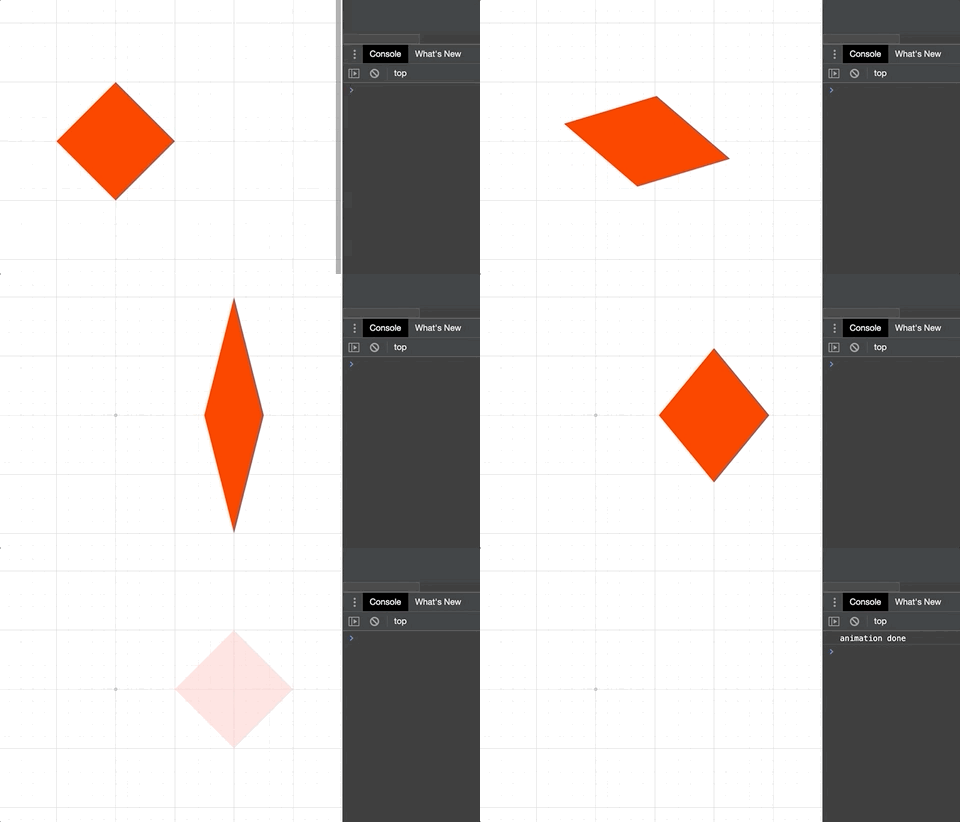
Stopping animations
Animations can be stopped from the animation, element and figure levels.
p.animations.new('mover')
.position({ target: [1, 0], duration: 4})
.start();
// after 1 second, cancel the specific animation by freezing it in place
setTimeout(() => {
p.animations.cancel('mover', 'freeze');
}, 1000);
p.animations.new()
.position({ target: [1, 0], duration: 4})
.start();
// after 1 second, cancel all an element's animations by instantly completing them
setTimeout(() => {
p.stop('complete');
}, 1000);
p.animations.new()
.position({ target: [1, 0], duration: 4})
.start();
// after 1 second, cancel all figure animations by freezing them
setTimeout(() => {
figure.stop('freeze');
}, 1000);