Morphing API Reference
Contents
- FigureElementPrimitiveMorph
- OBJ_Morph
- OBJ_ImageToShapes
- imageToShapes
- OBJ_PolylineToShapes
- polylineToShapes
- OBJ_PointsToShapes
- pointsToShapes
- OBJ_PolygonCloudShapes
- polygonCloudShapes
- OBJ_CircleCloudShapes
- circleCloudShapes
- OBJ_RectangleCloudShapes
- rectangleCloudShapes
FigureElementPrimitiveMorph
FigureElementPrimitive that can efficiently translate large numbers of points.
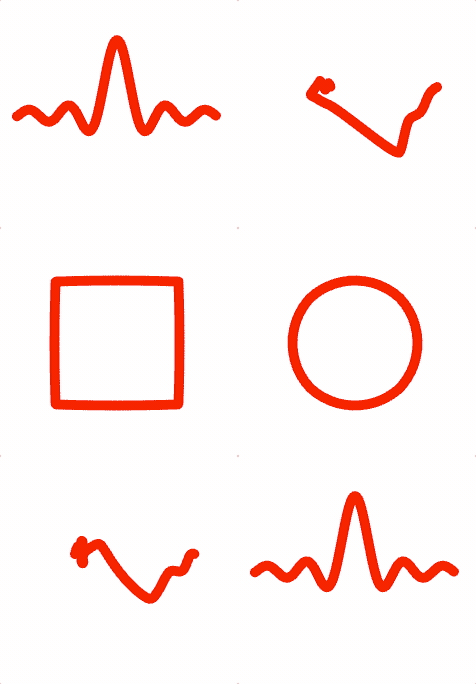
The morph primitive is optimized to animate hundreds of thousands of points with minimal performance impact.
Multiple arrays of points can be defined, and the translation of corresponding points in two arrays can be animated.
Being able to accomodate so many points means this primitive can be used to efficiently morph shapes.
All points in all point arrays can be assigned an individual color if
desired. Use color: TypeColor to assign all points in all arrays the same
color, color: Array<TypeColor> to assign all points in each array a
specific color, color: Array<Array<TypeColor>> to assign each point in
each array a specific color, and
color: Array<TypeColor | Array<TypeColor> to assign some point arrays
with one color, and others with a specific color per point.
A point array is an array of numbers representing consecutive x, y points. For example, [x1, y1, x2, y2, ...].
A color array is an array of numbers representing the color of each points. For example, [r1, g1, b1, a1, r2, g2, b2, a2, ...].
If color is an array of colors and/or color arrays, then the its length
must be equal to the number of point Arrays. The colors in the array will
be matched up with the corresponding point arrays in points.
This element's specialty is creating a visual effect, and so does not
automatically calculate touch borders, and doesn't allow for color changes
(with the setColor, dim, and undim methods). If touch borders are
desired then either setup touch borders manually, or use a different
element as a touch pad.
This element comes with two specialized methods and an animation step:
setPoints- sets points to a specific point arraysetPointsBetween- sets points to a position between two point arraysanimations.morph- morph betweenstartandtarget
Note, while animation is efficient, loading or generating hundreds of thousands of points when first instantiated can be slow on lower end systems, and may need to be accounted for (like letting the user know that loading is ongoing).
Example 1
const { polylineToShapes, getPolygonCorners } = Fig.morph;
const { range } = Fig;
// Number of shapes that make up the lines
const n = 300;
// Generate a line of points along a sinc function
const sinc = (xIn, a, b) => {
const x = xIn === 0 ? 0.00001 : xIn;
return a * Math.sin(b * x) / (b * x);
};
// Generate line of shapes along a sinc function
const xValues = range(-0.8, 0.8, 0.01);
const [sincPoints] = polylineToShapes({
points: xValues.map(x => [x, sinc(x, 0.6, 20)]),
num: n,
size: 0.04,
shape: 15,
});
// Generate a line of shapes along a square
const [squarePoints] = polylineToShapes({
points: [[0.5, 0.5], [-0.5, 0.5], [-0.5, -0.5], [0.5, -0.5]],
num: n,
size: 0.04,
close: true,
shape: 15,
});
// Generate a line of shapes along a circle
const [circlePoints] = polylineToShapes({
points: getPolygonCorners({ radius: 0.5, sides: 50, rotation: Math.PI / 4 }),
num: n,
size: 0.04,
close: true,
shape: 15,
});
const morpher = figure.add({
make: 'morph',
names: ['sinc', 'square', 'circle'],
points: [sincPoints, squarePoints, circlePoints],
color: [1, 0, 0, 1],
});
// Animate morph
morpher.animations.new()
.delay(1)
.morph({ start: 'sinc', target: 'square', duration: 2 })
.morph({ start: 'square', target: 'circle', duration: 2 })
.morph({ start: 'circle', target: 'sinc', duration: 2 })
.start();
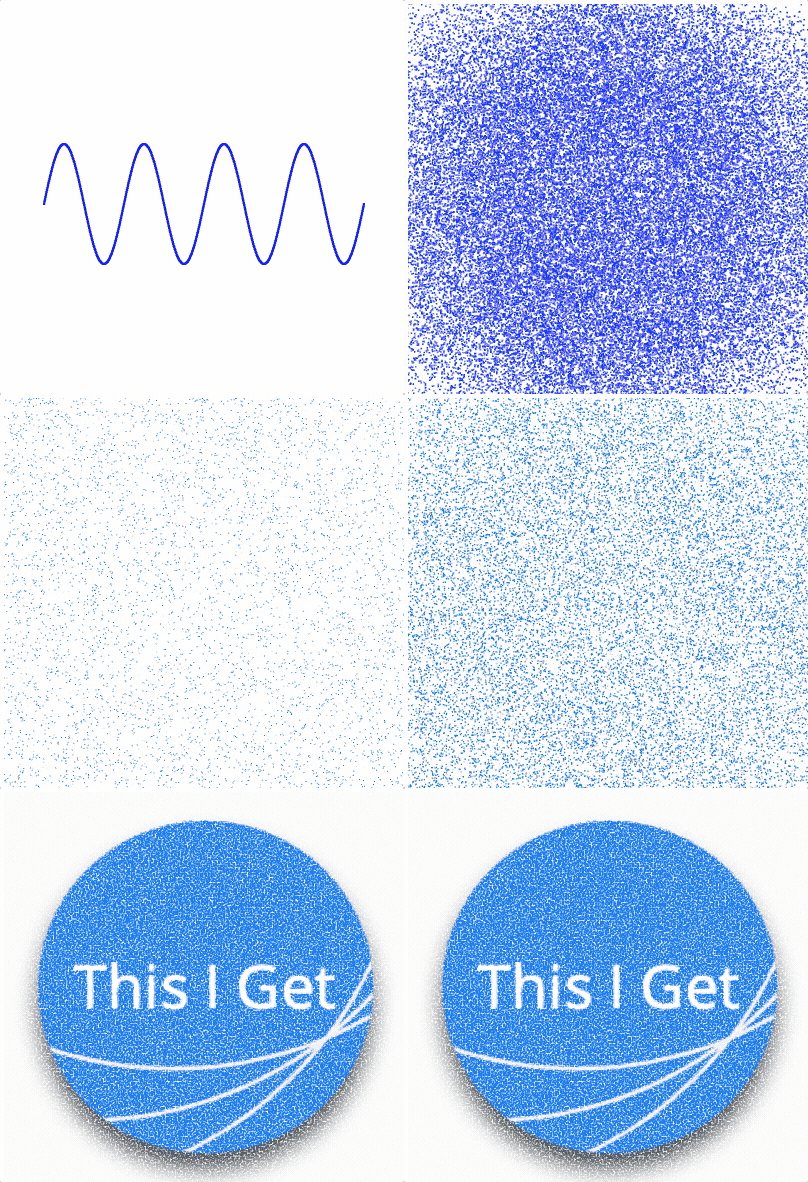
Example 2
const { imageToShapes, circleCloudShapes, polylineToShapes } = Fig.morph;
const { range } = Fig;
const image = new Image();
image.src = './logocolored.png';
image.onload = () => {
const [logo, logoColors] = imageToShapes({
image,
width: 2,
height: 2,
dither: 0.003,
});
const n = logo.length / 2 / 6;
const cloud = circleCloudShapes({
radius: 3,
num: n,
size: 0.005,
});
const xValues = range(-0.8, 0.8, 0.001);
const [sine] = polylineToShapes({
points: xValues.map(x => [x, 0.3 * Math.sin(x * 2 * Math.PI / 0.4)]),
num: n,
size: 0.01,
});
const m = figure.add({
make: 'morph',
points: [cloud, logo, sine],
names: ['cloud', 'logo', 'sine'],
color: [logoColors, logoColors, [0, 0, 1, 1]],
});
m.setPoints('sine');
m.animations.new()
.delay(1)
.morph({ start: 'sine', target: 'cloud', duration: 2 })
.morph({ start: 'cloud', target: 'logo', duration: 2 })
.start();
};
OBJ_Morph
morph options object.
Properties
- name: string
- pointArrays: Array<Array<number>>
point arrays to morph between. Each point array is an array of consecutive x, y values of points. For example: [x1, y1, x2, y2, x3, y3, ...].
- color: TypeColor | Array<TypeColor | Array<TypeColor>>
colors to be assigned to the points
- names: Array
optional names for each point array. Names can be used when using the morph animation step instead of point array indeces.
- glPrimitive: 'TRIANGLES' | 'POINTS' | 'FAN' | 'STRIP' | 'LINES' = 'TRIANGLES'
glPrimitive is the same for all point arrays
OBJ_ImageToShapes
Properties
- image: Image
- num: number | null = null
maximum number of shapes to return -
nulldefaults to the number of pixels (or filtered pixels if a filter is used) - excess: 'repeatOpaqueOnly' | 'lastOpaque' | 'repeat'
if num is greater than the number of pixels, then either
'repeat'the shapes from all the pixels again, repeat the shapes from only the opaque pixels'repeatOpaqueOnly'or put all execess shapes on the'lastOpaque'pixel. Note, repeating pixels that are semitransparent will effectively put multiple pixels on top of each other, reducing the transparency of the pixel ('repeatOpaqueOnly'). - filter: function(TypeColor, [number, number]) => boolean
filter function with pixel color and pixel position input parameters. Return
trueto keep pixel. Pixel position is (0, 0) in top left corner and (pixelsWidth, pixelsHeight) in the bottom right (() => true) - distribution: 'raster' | 'random' = random
Returned shapes are randomly distributed throughout shape (
'random') or rasterized in order from top left to bottom right of image (or filtered image) - width: number | null
width to map image pixels to. Width is between center of most left to most right pixels
- height: number | null
height to map image pixels to. Height is between center of most bottom to most top pixels
- size: number
shape size to map pixel to. Final points will have a width of
width + sizecenter of points are used to determinewidthandheight. Default shape is a square, and default size (if left undefined) is the size needed to make adjacent square shapes touch - position: TypeParsablePoint
position to place shapes at
- xAlign: TypeHAlign
align shapes horizontally around
position - yAlign: TypeVAlign
align shapes vertically around
position - align: 'image' | 'filteredImage'
imagewill align the shapes as if there were no pixels filtered out.filteredImagewill align to only the shapes that exist. - dither: number
Add a random offset to each shape to create a dither effect
- shape: function(Point, number): Array<number> | number
By default a square of two triangles is created (six vertices). Use a
numberto create a regular polygon withnumbersides. Use a custom function to make a custom shape. The function takes as input the [x, y] position of the point to build the shape around, andsize. It outputs an array of interlaced x and y coordinates of triangle vertices - i.e.: [x1, y1, x2, y2, x3, y3, ....] - makeColors: function(TypeColor, number): Array<number>
use this function to customze color mapping. The function takes as input the pixel's color, and the number of vertices that need to be colored. It outputs an array of colors for each vertex - i.e.: [r1, b1, g1, a1, r2, g2, b, a2, ...]
imageToShapes
imageToShapes maps the pixels of an image to shapes that will be
used to draw those pixels.


All pixels in an image can be made shapes, or a filter function can be used
to only use desired pixels.
The shapes can be rasterized in order (raster from top left to bottom right) or be in a random order.
The image pixel centers are mapped to some width and height and aligned
to a position relative to either all pixels in the original image, or just
the filtered pixels. The shapes are centered on the pixel centers.
This method is useful for including images in morphing effects. It should not be used to simply show an image (use a texture with some FigureElementPrimitive for this).
Parameters
- options: OBJ_ImageToShapes
Returns
[Array<number>, Array<number>] — [vertices, colors]
Example 1
const { imageToShapes, rectangleCloudShapes } = Fig.morph;
const image = new Image();
image.src = './logo.png';
image.onload = () => {
const [logo, logoColors] = imageToShapes({
image,
width: 0.7,
height: 0.7,
filter: c => c[3] > 0,
});
const cloud = rectangleCloudShapes({
width: 2,
height: 2,
num: logo.length / 2 / 6,
});
const m = figure.add({
make: 'morph',
points: [cloud, logo],
color: [logoColors, logoColors],
});
m.animations.new()
.delay(1)
.morph({ start: 0, target: 1, duration: 2 })
.start();
};
Example 2
const { imageToShapes } = Fig.morph;
const micImage = new Image();
micImage.src = './mic.png';
const headphonesImage = new Image();
headphonesImage.src = './headphones.png';
let index = 0;
const loaded = () => {
index += 1;
if (index < 2) {
return;
}
const [mic, micColors] = imageToShapes({
image: micImage,
width: 0.7,
filter: c => c[3] > 0,
});
const [headphones, headphoneColors] = imageToShapes({
image: headphonesImage,
width: 0.7,
filter: c => c[3] > 0,
num: mic.length / 6 / 2,
});
const m = figure.add({
make: 'morph',
points: [mic, headphones],
color: [micColors, headphoneColors],
});
m.animations.new()
.delay(1)
.morph({ start: 0, target: 1, duration: 2 })
.start();
};
micImage.onload = loaded.bind(this);
headphonesImage.onload = loaded.bind(this);
OBJ_PolylineToShapes
Options obect for polylineToShapes that evenly distributes shapes along a line
Properties
- points: Array<TypeParsablePoint>
array of points representing a polyline where each point is a corner in the line
- num: number
number of shapes to distribute along line
- close: boolean
truecloses the polyline - size: number
size of shape
- shape: function(Point, number): Array<number> | number
By default a square of two triangles is created (six vertices). Use a
numberto create a regular polygon withnumbersides. Use a custom function to make a custom shape. The function takes as input the [x, y] position of the point to build the shape around, andsize. It outputs an array of interlaced x and y coordinates of triangle vertices - i.e.: [x1, y1, x2, y2, x3, y3, ....] - makeColors: function(number, Point, number, number, number): Array<number>
function that creates colors for each vertex of the shape. Function input parameters are the number of shape vertices to be colored, the center point coordinate, the previous polyline point index, the cumulative length from the start of the polyline, and the percentLength from the start of the polyline. The function must return a single array containing all vertex colors.
polylineToShapes
polylineToShapes distributes a number of shapes equally along a polyline.
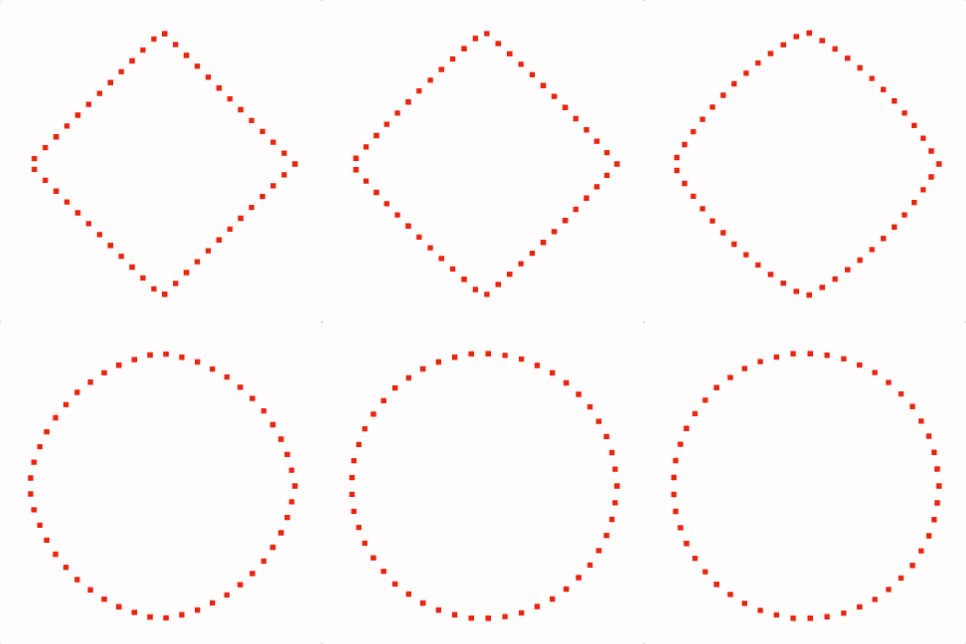
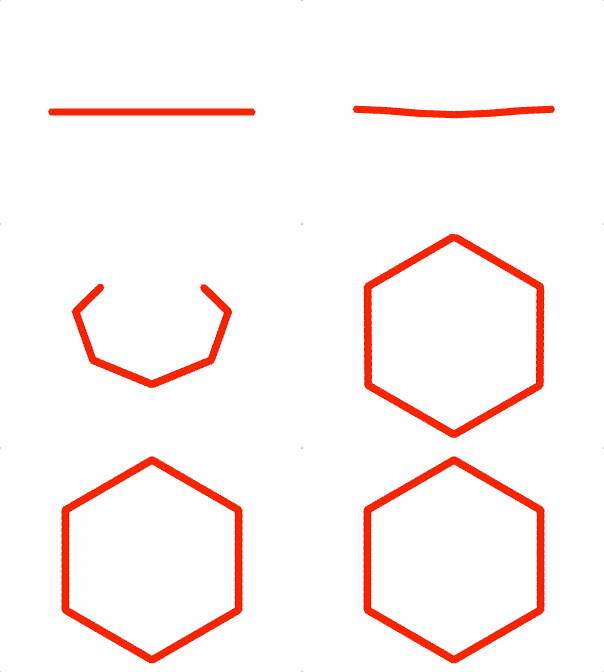
The polyline is defined by an array of points, where each point is a corner in the polyline
The start and ends of the polyline each have a centered shape
The polyline can be closed or open.
This method is useful for morphing between shapes.
Parameters
- options: OBJ_PolylineToShapes
Returns
[Array<number>, Array<number>] — [vertices, colors]
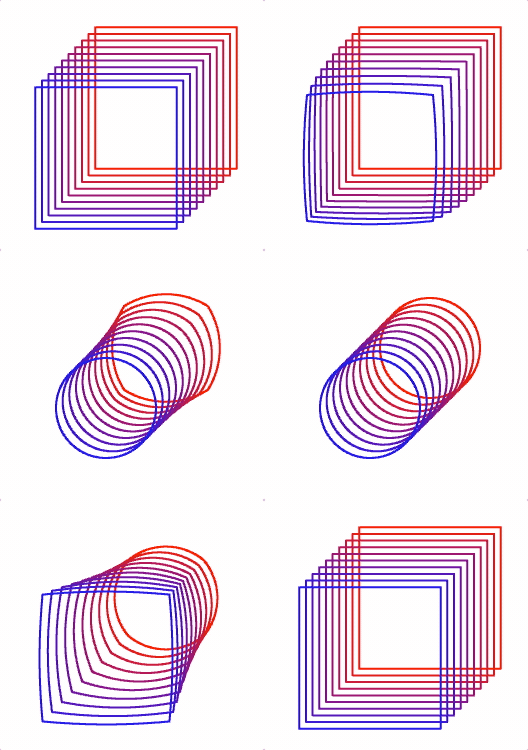
Example 1
const { polylineToShapes, getPolygonCorners } = Fig.morph;
const [square] = polylineToShapes({
points: [[0.5, 0], [0, 0.5], [-0.5, 0], [0, -0.5]],
num: 50,
size: 0.03,
close: true,
});
const [circle] = polylineToShapes({
points: getPolygonCorners({ radius: 0.5, sides: 30 }),
num: 50,
size: 0.03,
close: true,
});
const m = figure.add({
make: 'morph',
points: [square, circle],
color: [1, 0, 0, 1],
});
m.animations.new()
.morph({ start:0, target: 1, duration: 2 })
.start();
Example 2
const { polylineToShapes, getPolygonCorners } = Fig.morph;
const [square] = polylineToShapes({
points: [[-0.5, 0], [0.5, 0]],
num: 500,
size: 0.02,
shape: 'hex',
});
const [circle] = polylineToShapes({
points: getPolygonCorners({ radius: 0.5, sides: 6, rotation: Math.PI / 2 }),
num: 500,
size: 0.02,
close: true,
shape: 'hex',
});
const m = figure.add({
make: 'morph',
points: [square, circle],
color: [1, 0, 0, 1],
});
m.animations.new()
.morph({ start:0, target: 1, duration: 2 })
.start();
Example 3
const { polylineToShapes, getPolygonCorners } = Fig.morph;
const [square] = polylineToShapes({
points: getPolygonCorners({ radius: 0.5, sides: 4, rotation: Math.PI / 4 }),
num: 500,
close: true,
});
const [circle] = polylineToShapes({
points: getPolygonCorners({ radius: 0.25, sides: 100, rotation: Math.PI / 4 }),
num: 500,
close: true,
});
for (let i = 0; i < 10; i += 1) {
const m = figure.add({
make: 'morph',
points: [square, circle],
position: [0.2 - i / 30, 0.2 - i / 30],
color: [1 - i / 10, 0, i / 10, 1],
});
m.animations.new()
.delay(2 - i / 10)
.morph({ start: 0, target: 1, duration: 2 })
.delay(2)
.morph({ start: 1, target: 0, duration: 2 })
.start();
}
OBJ_PointsToShapes
Options obect for pointsToShapes that creates a shape at each point
Properties
- points: Array<TypeParsablePoint>
array of points to create shapes at
- size: number
size of shape
- shape: function(Point, number): Array<number> | number
By default a square of two triangles is created (six vertices). Use a
numberto create a regular polygon withnumbersides. Use a custom function to make a custom shape. The function takes as input the [x, y] position of the point to build the shape around, andsize. It outputs an array of interlaced x and y coordinates of triangle vertices - i.e.: [x1, y1, x2, y2, x3, y3, ....] - makeColors: function(number, Point): Array<number>
function that creates colors for each vertex of the shape. Function input parameters are the number of shape vertices to be colored, and the position of the shape. The function must return a single array containing all vertex colors.
pointsToShapes
pointsToShapes creates shapes at each point input.
This method is useful for morphing between shapes.
Parameters
- options: OBJ_PointsToShapes
Returns
[Array<number>, Array<number>] — [vertices, colors]
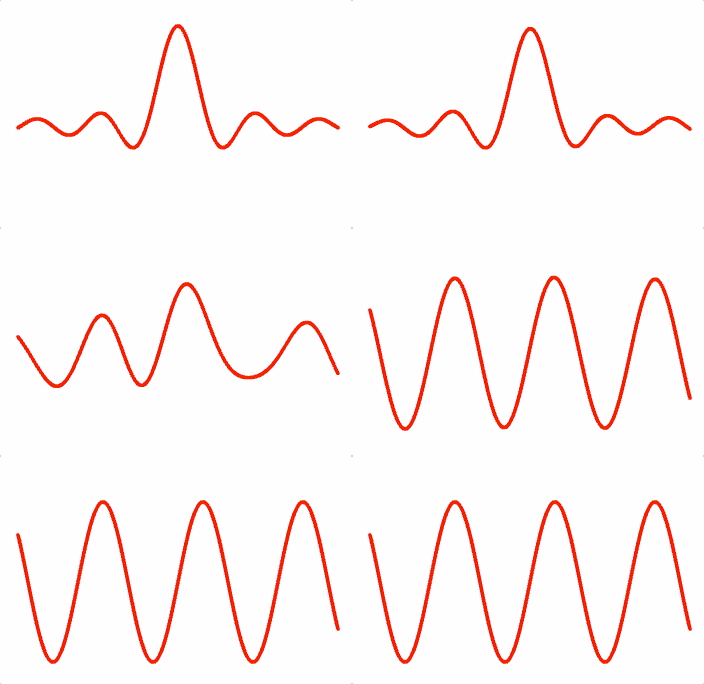
Example 1
const { pointsToShapes } = Fig.morph;
const xValues = Fig.range(-0.8, 0.8, 0.001);
const sinc = (xIn, a, b, c) => {
const x = (xIn + c) === 0 ? 0.00001 : xIn + c;
return a * Math.sin(b * x) / (b * x);
};
const [trace1] = pointsToShapes({
points: xValues.map(x => [x, sinc(x, 0.5, 20, 0)]),
shape: 'hex',
});
const [trace2] = pointsToShapes({
points: xValues.map(x => [x, 0.4 * Math.sin(x * 2 * Math.PI / 0.5)]),
shape: 'hex',
});
const m = figure.add({
make: 'morph',
points: [trace1, trace2],
color: [1, 0, 0, 1],
});
m.animations.new()
.morph({ start: 0, target: 1, duration: 2 })
.start();
OBJ_PolygonCloudShapes
Options object to generate shapes at random positions within a polygon.
Properties
- num: number = 10
number of shapes to generate
- size: number = 0.01
size of each shape
- radius: number = 1
radius of polygon
- sides: number = 4
number of polygon sides
- position: TypeParsablePoint = [0, 0]
center position of polygon
- rotation: number = 0
polygon rotation (first vertex will be along the positive x axis)
- shape: function(Point, number): Array<number> | number
By default a square of two triangles is created (six vertices). Use a
numberto create a regular polygon withnumbersides. Use a custom function to make a custom shape. The function takes as input the [x, y] position of the point to build the shape around, andsize. It outputs an array of interlaced x and y coordinates of triangle vertices - i.e.: [x1, y1, x2, y2, x3, y3, ....]
polygonCloudShapes
Generate random points within a polygon.
Parameters
- polygonCloudPoints: OBJ_PolygonCloudShapes
Returns
Array<number> — array of interlaced x and y coordinates of vertices
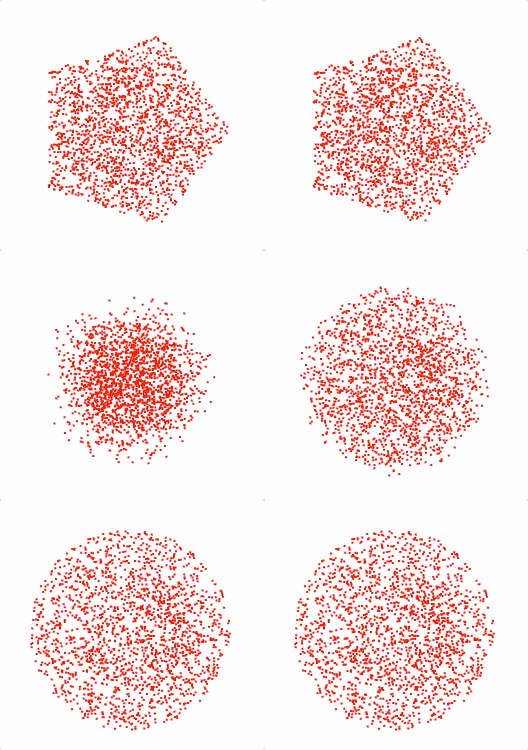
Example 1
const { polygonCloudShapes } = Fig.morph;
const cloud1 = polygonCloudShapes({
num: 2000,
radius: 0.5,
sides: 5,
});
const cloud2 = polygonCloudShapes({
num: 2000,
radius: 0.5,
sides: 100,
});
const m = figure.add({
make: 'morph',
points: [cloud1, cloud2],
color: [1, 0, 0, 1],
});
m.animations.new()
.morph({ start: 0, target: 1, duration: 2 })
.start();
OBJ_CircleCloudShapes
Options object to generate shapes at random positions within a circle.
Properties
- num: number = 10
number of shapes to generate
- pointSize: number = 0.01
size of each shape
- radius: number = 1
radius of circle
- position: TypeParsablePoint = [0, 0]
center position of circle
- shape: function(Point, number): Array<number> | number
By default a square of two triangles is created (six vertices). Use a
numberto create a regular polygon withnumbersides. Use a custom function to make a custom shape. The function takes as input the [x, y] position of the point to build the shape around, andsize. It outputs an array of interlaced x and y coordinates of triangle vertices - i.e.: [x1, y1, x2, y2, x3, y3, ....]
circleCloudShapes
Generate random points within a circle.
Parameters
- options: OBJ_CircleCloudShapes
Returns
Array<number> — array of interlaced x and y coordinates of vertices
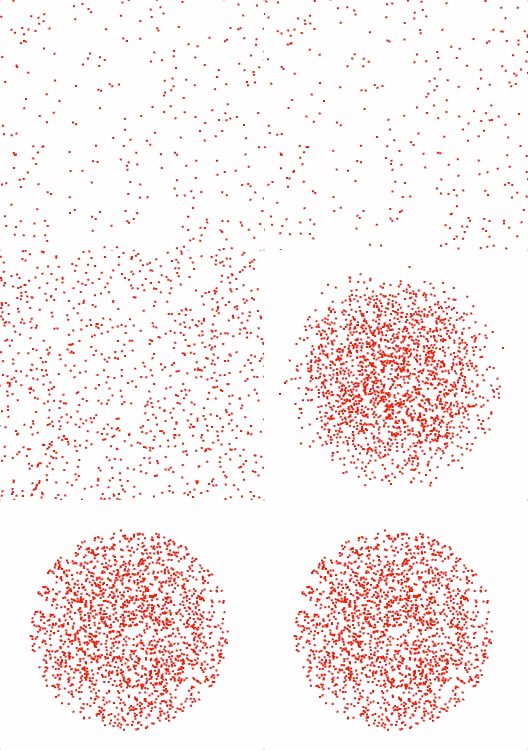
Example 1
const { circleCloudShapes } = Fig.morph;
const cloud1 = circleCloudShapes({
num: 2000,
radius: 2,
});
const cloud2 = circleCloudShapes({
num: 2000,
radius: 0.5,
});
const m = figure.add({
make: 'morph',
points: [cloud1, cloud2],
color: [1, 0, 0, 1],
});
m.animations.new()
.morph({ start: 0, target: 1, duration: 2 })
.start();
OBJ_RectangleCloudShapes
Options object to generate shapes at random positions within a rectangle.
Properties
- maxPoints: number = 10
number of shapes to generate
- pointSize: number = 0.01
size of each shape
- width: number = 1
width of rectangle
- height: number = 1
height of rectangle
- position: TypeParsablePoint = [0, 0]
center position of rectangle
- shape: function(Point, number): Array<number> | number
By default a square of two triangles is created (six vertices). Use a
numberto create a regular polygon withnumbersides. Use a custom function to make a custom shape. The function takes as input the [x, y] position of the point to build the shape around, andsize. It outputs an array of interlaced x and y coordinates of triangle vertices - i.e.: [x1, y1, x2, y2, x3, y3, ....]
rectangleCloudShapes
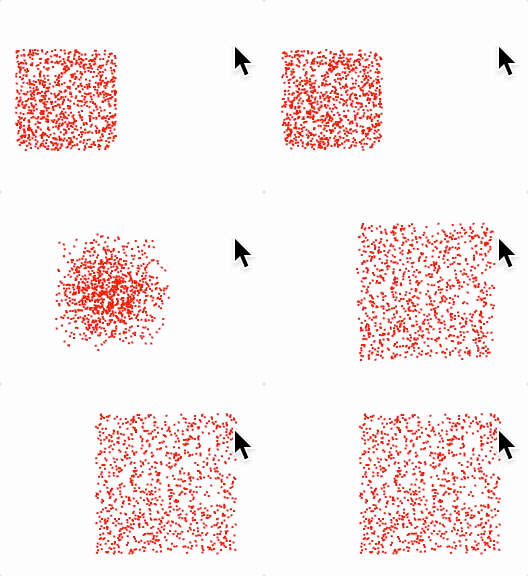
Generate random points within a rectangle.
Parameters
- options: OBJ_RectangleCloudShapes
Returns
Array<number> — array of interlaced x and y coordinates of vertices
Example 1
const { rectangleCloudShapes } = Fig.morph;
const cloud1 = rectangleCloudShapes({
num: 1000,
width: 0.5,
height: 0.5,
position: [-0.5, 0],
});
const cloud2 = rectangleCloudShapes({
num: 1000,
width: 0.7,
height: 0.7,
});
const m = figure.add({
make: 'morph',
points: [cloud1, cloud2],
color: [1, 0, 0, 1],
});
m.animations.new()
.morph({ start: 0, target: 1, duration: 2 })
.start();
primitive name