Slide Navigator API Reference
Contents
- COL_SlideNavigator
- CollectionsSlideNavigator
- TypeSlideFrom
- TypeSlideLeaveStateCallback
- TypeSlideStateCallback
- TypeSlideTransitionCallback
- TypeTransitionDefinition
- OBJ_SlideNavigatorSlide
- OBJ_EquationDefaults
- OBJ_SlideNavigator
- SlideNavigator
COL_SlideNavigator
Extends OBJ_Collection
CollectionsSlideNavigator options object that extends
OBJ_Collection options object (without parent).
This rectangle is similar to OBJ_Rectangle, except it can accomodate both a fill and a border or line simultaneously with different colors.
Properties
- collection: Figure | FigureElementCollection | string
- slides: Array<OBJ_SlideNavigatorSlide>
- prevButton: COL_SlideNavigatorButton | null
previous button options - use
nullto hide - nextButton: COL_SlideNavigatorButton | null
next button options - use
nullto hide - text: OBJ_FormattedText | null
text options - use
nullto hide - equation: Equation | string | Array<string | Equation>
equation to tie to SlideNavigator
- equationDefaults: COL_SlideNavigatorEqnDefaults
default equation animation options
- disableOpacity: number = 0.7
opacity for previous button when disabled
CollectionsSlideNavigator
FigureElementCollection that creates elements to work with SlideNavigator.
This object defines a rectangle FigureElementCollection that may include:
- previous button
- next button
- OBJ_TextLines object
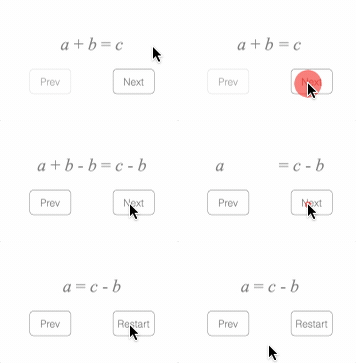
At its simplest, the SlideNavigator can be used to navigate an equation
figure.add([
{
name: 'eqn',
make: 'equation',
formDefaults: { alignment: { xAlign: 'center' } },
forms: {
0: ['a', '_ + ', 'b', '_ = ', 'c'],
1: ['a', '_ + ', 'b', '_ - b_1', '_ = ', 'c', '_ - ', 'b_2'],
2: ['a', '_ = ', 'c', '_ - ', 'b_2'],
},
formSeries: ['0', '1', '2'],
},
{
name: 'nav',
make: 'collections.slideNavigator',
equation: 'eqn',
},
]);
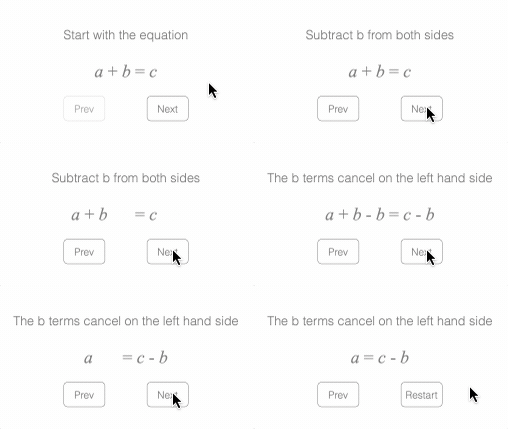
Text can be used to describe each slide
figure.add([
{
name: 'eqn',
make: 'equation',
formDefaults: { alignment: { xAlign: 'center' } },
forms: {
0: ['a', '_ + ', 'b', '_ = ', 'c'],
1: ['a', '_ + ', 'b', '_ - b_1', '_ = ', 'c', '_ - ', 'b_2'],
2: ['a', '_ = ', 'c', '_ - ', 'b_2'],
},
},
{
name: 'nav',
make: 'collections.slideNavigator',
equation: 'eqn',
text: { position: [0, 0.3] },
slides: [
{ text: 'Start with the equation', form: '0' },
{ text: 'Subtract b from both sides' },
{ form: '1' },
{ text: 'The b terms cancel on the left hand side' },
{ form: '2' },
],
},
]);
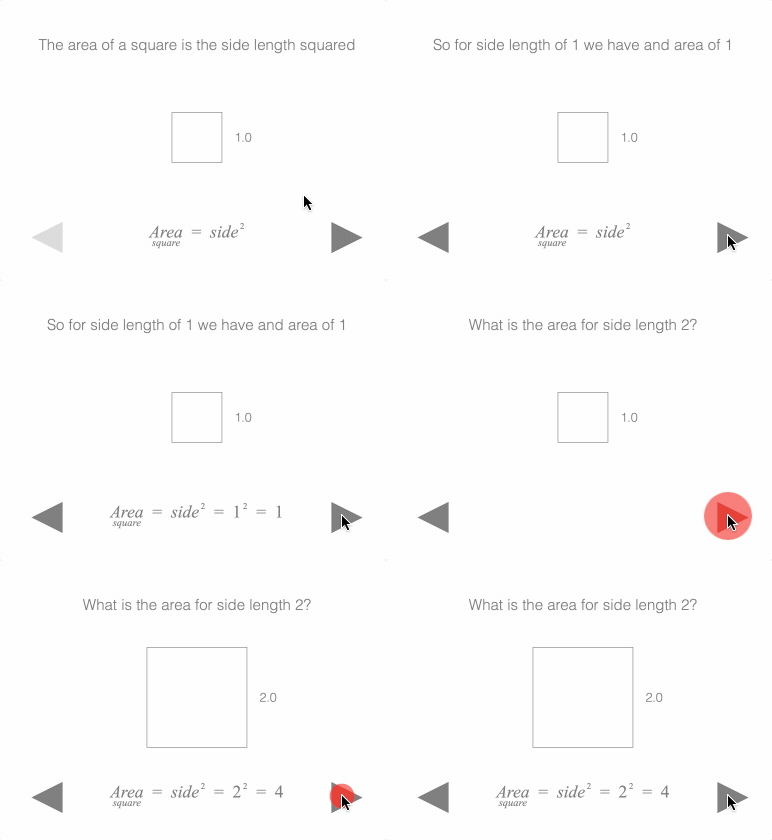
This example creates a story by evolving a description, a diagram
// and an equation.
figure.add([
{ // Square drawing
name: 'square',
make: 'primitives.rectangle',
width: 0.4,
height: 0.4,
line: { width: 0.005 },
},
{ // Side length label
name: 'label',
make: 'text',
yAlign: 'middle',
position: [0.3, 0],
font: { size: 0.1 },
},
{ // Equation
name: 'eqn',
make: 'equation',
elements: {
eq1: ' = ',
eq2: ' = ',
eq3: ' = ',
},
phrases: {
sideSqrd: { sup: ['side', '_2'] },
areaEqSide: [{ bottomComment: ['Area', 'square'] }, 'eq1', 'sideSqrd'],
},
formDefaults: { alignment: { xAlign: 'center' } },
forms: {
0: ['areaEqSide'],
1: ['areaEqSide', 'eq2', { sup: ['_1', '_2_1'] }, 'eq3', '_1_1'],
2: ['areaEqSide', 'eq2', { sup: ['_2_2', '_2_1'] }, 'eq3', '4'],
},
position: [0, -0.8],
},
{ // Slide Navigator
name: 'nav',
make: 'collections.slideNavigator',
equation: 'eqn',
nextButton: { type: 'arrow', position: [1.2, -0.8] },
prevButton: { type: 'arrow', position: [-1.2, -0.8] },
text: { position: [0, 0.7], font: { size: 0.12 } },
},
]);
const square = figure.getElement('square');
const label = figure.getElement('label');
// Update the square size, and side label for any sideLength
const update = (sideLength) => {
square.custom.updatePoints({ width: sideLength, height: sideLength });
label.setPosition(sideLength / 2 + 0.1, 0);
label.setText({ text: `${(sideLength / 0.4).toFixed(1)}` });
};
// Add slides to the navigator
figure.getElement('nav').loadSlides([
{
showCommon: ['square', 'label', 'eqn'],
text: 'The area of a square is the side length squared',
form: '0',
steadyStateCommon: () => update(0.4),
},
{ text: 'So for side length of 1 we have and area of 1' },
{ form: '1' },
{ form: null, text: 'What is the area for side length 2?' },
{
transition: (done) => {
square.animations.new()
.custom({
duration: 1,
callback: p => update(0.4 + p * 0.4),
})
.whenFinished(done)
.start();
},
steadyStateCommon: () => update(0.8),
},
{ form: '2' },
]);
See SlideNavigator for information about what a slide navigator is.
To test examples below, append them to the boilerplate.
TypeSlideFrom
Last slide shown
'next' | 'prev' | number
TypeSlideLeaveStateCallback
(currentIndex: number, nextIndex: number) => void
When using Recorder, a string from a FunctionMap can be used, as long as the function the string maps to allows for the same parameters as above.
TypeSlideStateCallback
(currentIndex: number, from: TypeSlideFrom) => void
When using Recorder, a string from a FunctionMap can be used, as long as the function the string maps to allows for the same parameters as above.
TypeSlideTransitionCallback
Callback definition for slide transition.
(done: () => void, currentIndex: number, from: TypeSlideFrom) => void
When using Recorder, a string from a FunctionMap can be used, as long as the function the string maps to allows for the same parameters as above.
Important note: the done parameter MUST be called at the end of the
transition to allow the slide to progress to steady state.
TypeTransitionDefinition
Transition Definition
TypeSlideTransitionCallback | OBJ_AnimationDefinition | Array<OBJ_AnimationDefinition | Array<OBJ_AnimationDefinition>>
For complete control in creating a transition animation, and/or setting necessary transition state within an application, use a function definition TypeSlideTransitionCallback.
Many transitions will be simple animations, dissolving in elements, dissolving out elements, or animating between positions. For these, a short hand way of defining animations can be used.
OBJ_AnimationDefinition is a json like object that defines the animation. When used in an array, multiple animations will be executed in series.
If an array of OBJ_AnimationDefinition objects has an element that itself is an array of OBJ_AnimationDefinition objects, then the the animations within the nested array will be executed in parallel.
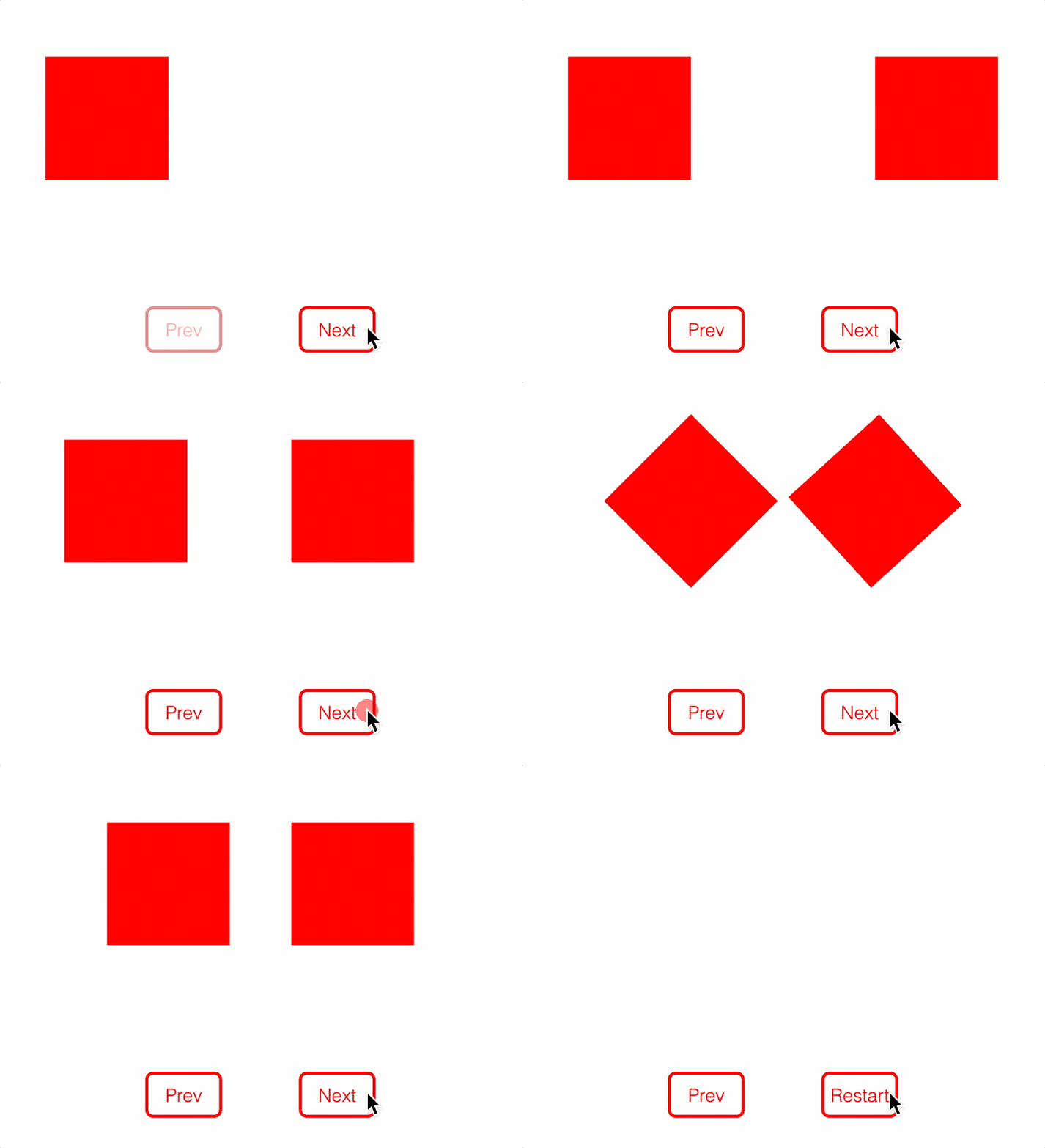
Figure has two rectangles and a slide navigator. Slides will dissolve in,
// dissolve out, move and rotate rectangles
const [rect1, rect2] = figure.add([
{
name: 'rect1',
make: 'primitives.rectangle',
width: 0.4,
height: 0.4,
position: [-0.5, 0.5],
},
{
name: 'rect2',
make: 'primitives.rectangle',
width: 0.4,
height: 0.4,
position: [0.5, 0.5],
},
{
name: 'nav',
make: 'collections.slideNavigator',
},
]);
const setPositionAndRotation = (r1Pos, r1Rot, r2Pos, r2Rot) => {
rect1.setPosition(r1Pos);
rect1.setRotation(r1Rot);
rect2.setPosition(r2Pos);
rect2.setRotation(r2Rot);
};
// Add slides to the navigator
figure.getElement('nav').loadSlides([
// Slide 1
{
showCommon: 'rect1',
enterStateCommon: () => setPositionAndRotation([-0.5, 0.5], 0, [0.5, 0.5], 0),
},
// Slide 2
{
transition: (done) => {
rect2.animations.new()
.dissolveIn({ duration: 1 })
.whenFinished(done) // Make sure to process done when finished
.start();
},
// When using a transition function, any changes during the transition
// need to be explicitly set at steady state
steadyState: () => {
rect2.show();
},
},
// Slide 3
// When using animation objects, the targets of animations will be
// automatically set at steady state, so user does not need to set them
{
showCommon: ['rect1', 'rect2'],
transition: { position: 'rect2', target: [0.3, 0.5], duration: 1 },
},
// Slide 4
// Use an array of animation object definitions to create a sequence of steps
{
enterState: () => setPositionAndRotation([-0.5, 0.5], 0, [0.3, 0.5], 0),
transition: [
{ position: 'rect1', target: [-0.3, 0.5], duration: 1 },
{ rotation: 'rect1', target: Math.PI / 4, duration: 1 },
{ rotation: 'rect2', target: Math.PI / 4, duration: 1 },
],
},
// Slide 5
// Use an array within an array to create parallel steps
{
enterState: () => setPositionAndRotation([-0.3, 0.5], Math.PI / 4, [0.3, 0.5], Math.PI / 4),
transition: [
[
{ rotation: 'rect1', target: 0, duration: 1 },
{ rotation: 'rect2', target: 0, duration: 1 },
],
[
{ position: 'rect1', target: [-0.5, 0.5], duration: 1 },
{ position: 'rect2', target: [0.5, 0.5], duration: 1 },
],
{ out: ['rect1', 'rect2'] },
],
},
]);
To test examples, append them to the boilerplate
OBJ_SlideNavigatorSlide
Slide definition options object.
This object defines the state the figure should be set to when this slide is navigated to.
A slide definition has several callback properties that can be used to set figure state including:
- enterState: set an initial state
- transition: define an animation for when moving to this slide
- steadyState: set steady state, then wait for next navigation event
- leaveState: set leave state when moving to another another slide
It is good practice to try and make each slide's state independant of other slides. If a square is shown on slides 4 and 5, then it should be explicitly shown on both slides. If it is only shown on slide 4, then it will be fine when the user navigates from slide 4 to 5, but will not be shown if the user is navigating from slide 6 to 5. Allowing users to go to specific slides out of order makes slide dependencies even more difficult.
Therefore, the enter, steady and leave states above should be used to fully define the figure's state on each slide.
However, while this approach will yield a good user experience, developing many slides, complex figures or numerous equation forms can make slide definition verbose. Even though each slide is different, many slides may share largely the same state, all of which needs to be explicitly defined for each slide.
The SlideNavigator tries to manage this by providing the fundamental state callbacks above, as well as properties that can be defined once, and shared between slides. Slides with shared, or common properties make copies of all the properties so each slide is independant, but require the developer to define them just once. If a slide doesn't define a common property, then it will use the definition in the last slide that defined it.
For example, the enterStateCommon property is a common property. If it is
defined in slides 4 and 7, then slides 0-3 will not have the property, slides
4-6 will use the slide 4 definition, and slides 7 and after will all use
slide 7's definition.
Common state properties include:
- enterStateCommon
- steadyStateCommon
- leaveStateCommon
The reason some states have both a common and slide specific property (such as steadyState and steadyStateCommon) is so the common property can be best leveraged. If all properties were common, then they would need to be redefined every time a small change was made. Having both common and slide specific properties allows a balance of defining some state for a group of slides once, while allowing specific changes to that state where needed.
In addition to the above state properties, there are a number of short-cut properties, that make it easy to set state for common figure elements. When a SlideNavigator is instantiated, a text figure element, a figure collection and one or more equation elements can be associated with it.
The text, modifier and modifierCommon properties can be used to set
the text of the text figure element associated with the SlideNavigator.
text and modifierCommon are common properties.
The form property is also common and can be used to automatically set the
form of the associated equation elements. A SlideNavigator can be associated
with one or more equations. The form property defines the form each of the
equations should be set to on this slide. If there is just one equation, then
the form property can be a string that is the form name. For two or more
equations, the form property should be an array of strings where each element
is the form name for the corresponding equation. The order of equations
passed into the SlideNavigator, needs to be the same as the order of strings
in the form array. To hide an equation, use a null instead of a string.
If the form property has less forms than equations, then all remaining
equations will be hidden.
The form property is a short cut with several consequences:
- All equations with
nullforms will be hidden prior toenterState. - If the slide doesn't have a
transitiondefined, and if an equation form is changed, then a transition will be added that animates the equation form change. Iftransitionis defined, and equation animation is required, then it needs to be defined in thetransitionproperty explicity. - Each equation with a defined form will have
showFormcalled on that form prior tosteadyState.
The life cycle of a slide change is:
leaveStateCommon(for current slide)leaveState(for current slide)- stop all animations
- Update associated text element with
textproperty - Hide all figure elements in associated collection
showCommonshow- show navigator buttons and navigator text element
hideCommonhide- show
fromForm - show all elements that dissolveIn or dissolveOut in an auto transition
scenarioCommonscenarioenterStateCommon(for new slide)enterStateaddReference- show all elements that dissolveOut and hide all elements that dissolveIn in an auto transition
- publish
beforeTransitionnotification - transition
- show
form - set targets from auto transition
steadyStateCommonsteadyState- update slide navigator buttons
- publish
steadynotification
Properties
- text: OBJ_TextLines
common property - With
modifiersCommonandmodifiersdefine the text for the text element associated with the SlideNavigator - modifiersCommon: OBJ_TextModifiersDefinition
common property
- modifiers: OBJ_TextModifiersDefinition
common property - will overwrite any keys from
modifiersCommonwith the same name - showCommon: TypeElementPath
common property
- show: TypeElementPath
- hideCommon: TypeElementPath
common property
- hide: TypeElementPath
- enterStateCommon: TypeSlideStateCallback
common property
- enterState: TypeSlideStateCallback
- transition: TypeTransitionDefinition
transititions are only called when moving between adjacent slides in the forward direction. Progressing backwards, or skipping around with
goToSlidewill not calltransition. A transition is a callback where animations can be defined. Adonefunction is passed to the callback and must be called at the end of the animation to allow slide steadyStates to be set. - steadyStateCommon: TypeSlideStateCallback
common property
- steadyState: TypeSlideStateCallback
- leaveStateCommon: TypeSlideLeaveStateCallback
common property
- leaveState: TypeSlideLeaveStateCallback
- form: string | Array<string | null> | null | Object
common property
- fromForm: string | Array<string | null> | null | Object
- scenarioCommon: string | Array<string>
common property
- scenario: string | Array<string>
- animate: 'move' | 'dissolve' | 'moveFrom' | 'pulse' |
'dissolveInThenMove'
override default animation option for automatic form animation using the 'form' property
- clear: boolean = false
truedoes not use any prior common properties - time: TypeRecorderTime
recorder only - absolute time to transition to slide.
- delta: number
recorder only - time delta in seconds from last slide transition to transition to this slide
- exec: Array<[TypeRecorderTime, string]> | [TypeRecorderTime, string]
recorder only - times to execute functions.
- execDelta: Array<[number | string, string]> | [number | string, string]
recorder only - time deltas to execute functions from the slide transition start.
- addReference: boolean
recorder only
truewill add a new reference state based on the current state
OBJ_EquationDefaults
Default equation animation properties.
OBJ_SlideNavigator
SlideNavigator options object
The options here associate a number of FigureElements with the SlideNavigator, which will be ustilized by the slide definitions in OBJ_SlideNavigatorSlide.
The collection property associates a FigureElementCollection. If a
Figure is passed in, then the root level collection will be
used. All animations in slide transitions should be attached to
this collection or its children as this is the collection that will be
stopped when skipping slides. All string definitions of other elements
will be relative to this collection, and therefore must be children of
this collection. A collection must be passed in.
prevButton and nextButton are buttons that can be used to progress
backwards and forwards through the slides. The SlideNavigator will
disable prevButton on the first slide and update nextButton label
(if it exists) with 'restart' when at the last slide.
text is a OBJ_TextLines figure element that will be updated
with the text property in OBJ_SlideNavigatorSlide
equation is one or more Equation elements to associate with the
SlideNavigator. Each associated equation will be operated on by the form
property in OBJ_SlideNavigatorSlide. Use OBJ_EquationDefaults to
set default equation animation properties when form creates slide
transitions.
Properties
- collection: Figure | FigureElementCollection
- slides: Array<OBJ_SlideNavigatorSlide>
- prevButton: null | FigureElement | string
- nextButton: null | FigureElement | string
- text: null | string | FigureElementCollection
- equation: Equation | string | Array<string | Equation>
- equationDefaults: OBJ_EquationDefaults
SlideNavigator
Slide Navigator
It is sometimes useful to break down a visualization into easier to consume parts.
For example, a complex figure or concept can be made easier if built up from a simple begining. Each step along the way might change the elements within the figure, or the form of an equation, and be accompanied by a corresponding description giving context, reasoning or next steps.
An analogy to this is a story or presentation, where each step along the way is a presentation slide.
This class is a simple slide navigator, providing a convenient way to define slides and step through them.
CollectionsSlideNavigator creates the navigation buttons, and
textElement automatically, and will usually be more convenient than
manually creating them (unless custom buttons are needed).
Notifications - The notification manager property notifications will
publish the following events:
goToSlide: published when slide changes - will pass slide index to subscribersteady: steady state reached (slide transition complete)
Properties
- notifications: NotificationManager
notification manager for element
- currentSlideIndex: number
index of slide current shown
- inTransition: boolean
trueif slide current transitioning
CollectionsSlideNavigator for examples.
collection to tie slide navigator to. By default will tie to its parent.