Text
FigureOne has several different ways to typeset and render text.
Text Typesetting
Text can either be type-set as:
- Plain text - single font, simple text - OBJ_Text
- Formatted text - multi-font, multi-line text - OBJ_FormattedText
- Equation text - Equation
This guide will cover plain and formatted text. this section is then dedicated to equations.
Plain Text
The most simple way to create text is with the 'text' primitive (with options OBJ_Text).
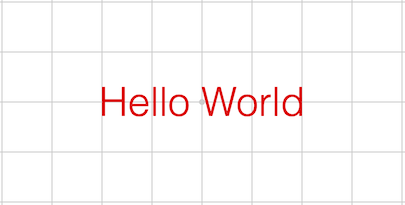
figure.add(
{
make: 'text',
text: 'Hello World',
xAlign: 'center',
yAlign: 'middle',
},
);
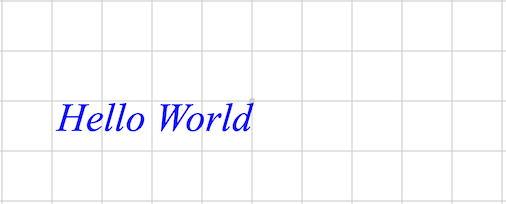
The text primitive can be used to create text with a number of horizontal alignment, vertical alignment, and font options.
figure.add(
{
make: 'text',
text: 'Hello World',
xAlign: 'right',
yAlign: 'top',
font: { family: 'Times New Roman', style: 'italic' },
color: [0, 0, 1, 1],
},
);
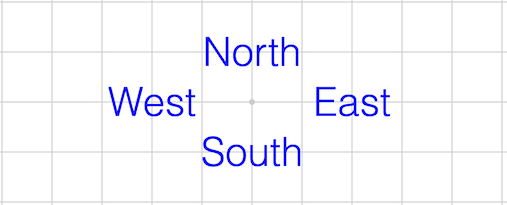
The text primitive can also be used to create many different strings of text at different locations. All strings will share the same alignment and font options.
figure.add(
{
make: 'text',
text: ['North', 'West', 'South', 'East'],
location: [[0, 0.5], [-1, 0], [0, -0.5], [1, 0]],
xAlign: 'center',
yAlign: 'middle',
color: [0, 0, 1, 1],
},
);
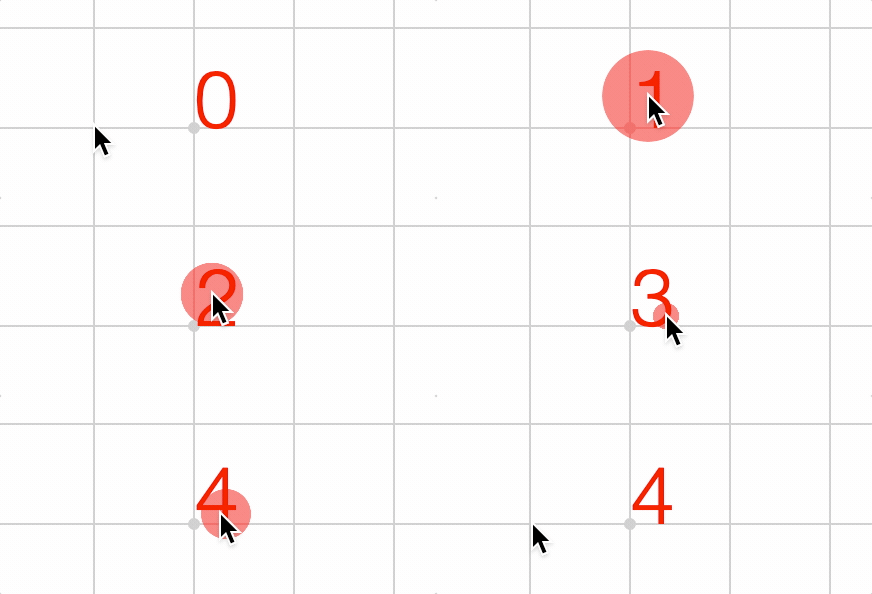
To update text, use the setText method on the created element. The below example updates the text everytime the text is touched.
let counter = 1;
figure.add({
make: 'text',
text: '0',
touch: {
onClick: (e) => {
e.setText(`${counter}`);
counter += 1;
},
},
});
Formatted Text
Formatted text is created with the ftext make definition and supports:
- Multiple lines
- Multiple fonts
- Multiple touch definitions
- Embedded equations
Multiple lines of text can be created by defining an array of strings as the text. Each element in the array is a new line.
figure.add({
make: 'ftext',
text: ['First line', 'This is line two', 'Third line'],
});
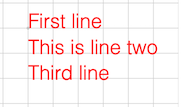
Each line can have individual formatting by using a line definition object instead of a string.
figure.add({
make: 'ftext',
text: [
'First line',
'This is line two',
{ text: 'Third line', font: { style: 'italic', color: [0, 0, 1, 1] } },
],
});
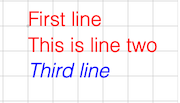
Strings withing lines can be formatted by surrounding the string with '|' characters and then defining the modification with the modifiers property. Any string within '|' characters will become a unique identifier that is referenced in the modifiers property. If more than one strings share the same unique identifier, then the will all be modified the same.
figure.add({
make: 'ftext',
text: [
'First |line|',
'This is |line| two',
'Third |line2|',
],
modifiers: {
line: { font: { color: [0, 0, 1, 1] } },
line2: { text: 'line', font: { color: [0, 0.8, 0, 1] } },
},
});
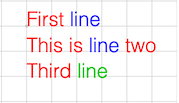
Modifiers can also be used to define specific portions of text that are interactive.
igure.add({
make: 'ftext',
text: [
'First |line|',
'This is |line2| two',
'Third |line3|',
],
modifiers: {
line: {
font: { color: [0, 0, 1, 1] },
onClick: () => console.log('line 1'),
},
line2: {
text: 'line',
font: { color: [0, 0.8, 0, 1] },
onClick: () => console.log('line 2'),
},
line3: {
text: 'line',
font: { color: [0, 0.8, 0.8, 1] },
onClick: () => console.log('line 3'),
},
},
});
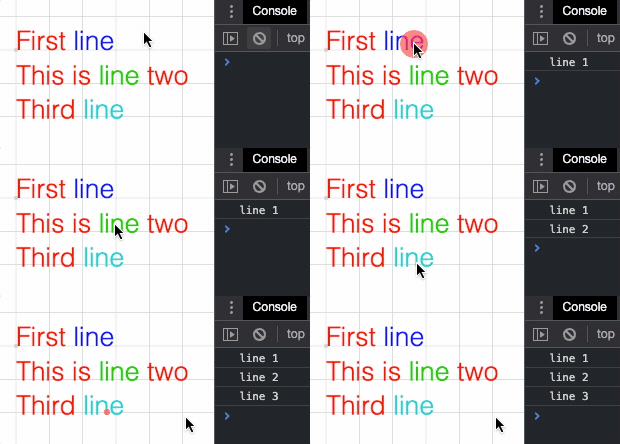
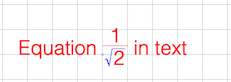
Modifiers can also be used to embed equations into the text. An equation phrase (TypeEquationPhrase) is used to define the equation, and if necessary, the elements property can be used to customize elements within the equation.
figure.add({
make: 'ftext',
text: [
'Equation |e| in text',
],
xAlign: 'center',
modifiers: {
e: {
eqn: { frac: ['1', 'vinculum', { root: ['rad', '2'] }] },
offset: [0, 0.1],
},
},
elements: {
rad: { symbol: 'radical', color: [0, 0, 1, 1] },
},
});
If formatted text is not sufficent, then use Equation for full typesetting customization.
Text Rendering
In FigureOne, text can be rendered to either the WebGL canvas, or a 2D canvas.
Both canvases are different HTML elements, and typically in FigureOne the 2D canvas will be above the WebGL canvas. This means rendering text to the 2D canvas results in text that is always above any and all shapes in the WebGL canvas (which is where all shapes are drawn). However 2D canvas text is drawn natively by the system, and does not have pixelation or resizing challenges that WebGL text has.
On the other hand, WebGL is great at drawing triangles, but as text can be challenging and expensive to decompose into triangles in real time, a common method to draw text is by using an image containing a grid of all the individual letters of the text (this is called a texture atlas of glyphs, where a glyph is a character like 'a' or 'C', and the atlas is a grid of characters, and texture is another name for an image).
WebGL with a texture atlas is very fast at drawing text, but because the text comes from an image, if the resolution of the image does not align well with the screen resolution then there can be pixelation. This means text that is scaled a lot, or a WebGL canvas that resizes a lot may have some cases where the text is not as crisp as it would be on the 2D canvas. Atlases can either be user defined or generated by FigureOne automatically. When generated automatically, the recreateAtlases method on Figure can be used to regenerate the atlases whenever needed to reduce pixelation.
An example atlas is below:
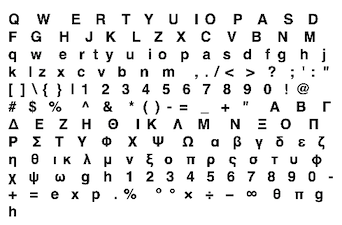
The main advantage of using WebGL rendered text is the text is on the same canvas as all the shapes. This means the draw order of shapes and text is respected and it is easy to chose which text should be infront of shapes and which text should be behind shapes.
To summarize the trade-offs between rendering text in the 2D cavnas and the WebGL canvas:
-
WebGL:
- Pros: Can be covered by shapes, fast to draw large amounts of static text
- Cons: Pixelation when resizing a lot, requires glyph definition and generation
-
2D Canvas:
- Pros: No pixelation, atlas management or glyph limitations
- Cons: Always on top (or below) WebGL shapes
By default text is rendered to the 2D canvas. For many cases this will be easiest to deal with. When text is desired in the WebGL canvas, anytime a font definition (@link OBJ_Font) is used, the render property can be set to 'gl'.
This can either be done globally on the figure by defining it at figure creation:
const figure = new Fig.Figure({
font: { render: '2d' }
});
Or it can be done at an element level:
const figure = new Fig.Figure();
figure.add({
make: 'text',
text: 'Hello World',
font: { color: [0, 0, 1, 1], style: 'italic', render: 'gl' },
});
Font
In FigureOne, a font OBJ_Font defines many properties of text including:
- family (eg: Times New Roman or Helvetica)
- size (vertical height)
- weight (eg: bold, light)
- style (eg: italic, normal)
- underline
- outline
- color
- available glyphs
- glyph size modifiers and adjustments (sometimes the browser or FigureOne measures fonts slightly wrong - especially in the case of obsure or italized fonts)
- atlas options (if using a WebGL font)
- render target (WebGL or 2D canvas)
In general, fonts will mostly be used to change the family, size, weight, style, outline, underline and color of text.
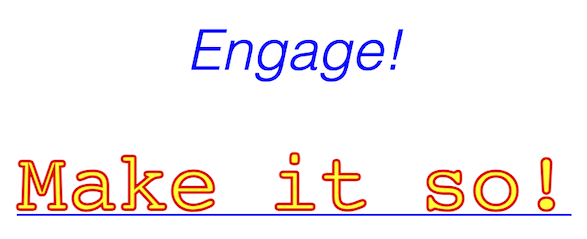
// Simple color and italic font definition
figure.add({
make: 'text',
text: 'Engage!',
font: {
color: [0, 0, 1, 1],
style: 'italic'
},
xAlign: 'center',
position: [0, 0.5],
});
// Font definition with family, color, outline, size and underline
figure.add({
make: 'text',
text: 'Make it so!',
font: {
family: 'monospace',
color: [1, 1, 0, 1],
outline: { fill: true, color: [1, 0, 0, 1], width: 0.02 },
size: 0.6,
underline: { color: [0, 0, 1, 1] },
},
xAlign: 'center',
position: [0, -0.5],
});
Web Fonts
When a web page uses a font that isn't provided by the browser by default, the font will be loaded asynchronously. This often means the JavaScript program that creates the FigureOne figure will execute before the font has finished loading.
HTML uses a fallback mechanism for fonts meaning if the font family "Helvetica" is defined but unavailable, then the default "sans serif" font will be used instead. As most fonts have different dimensions (like width), this means any text elements created before the font has loaded will have a dimension related to the default font and not the desired one.
Therefore, FigureOne internally tracks when fonts are loaded, and will automatically redimension text elements when a font becomes available.
Similarly, if automatically generated font atlases are used with WebGL rendered fonts, these atlases will automatically be regenerated when a font is loaded.
This should work for most people most of the time.
However, there may be some cases where it is desirable to do this process manually, or execute additional logic when fonts become available.
Therefore, every Figure has a FontManager as a property. The FontManager can be used to watch when fonts become available.